IBO Player Pro Setup Guide
How It Works (Same on Every Device)
Install → Note 3 Details → Link Your Playlist → Restart
- Install the app on your device (instructions per device below).
- Open the app. The main screen shows 3 things you need:
- Website, the web address shown in your app
- MAC address, e.g.
AA:BB:CC:DD:EE:FF - Device Key, the code shown next to your MAC address
- On any device with a browser (phone, tablet, or PC), go to the website shown in your app and log in using your MAC address and Device Key.
- In your account, add a new playlist using one of these:
- M3U URL, paste the M3U link we emailed you, or
- Xtreme Codes, enter the server URL, username, and password we emailed you
- Save the playlist.
- Go back to your TV or Firestick, close the app completely and reopen it, your channels will appear.
That's it, no waiting, no remote setups. Your playlist is linked and ready to watch.
Android TV / Google Play Store
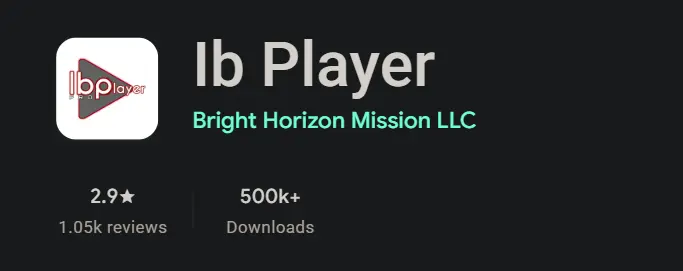
Step 1, Install "IBO Player" from the Google Play Store
Open the Play Store on your Android TV or device and search for IBO Player (the official app by the iboplayer.pro team). Download and install it just like any other app. No need to enable unknown sources or use Downloader, this is the simplest method.
Step 2, Open IBO Player & note your device info
Launch the app. On the main screen you'll see your website, MAC address, and Device Key. Note all three down.
Step 3, Link your playlist (self-service)
- Open a browser on any device and go to the website shown in the app.
- Log in using your MAC address and Device Key.
- Add a new playlist with your M3U URL or Xtreme Codes details (emailed to you) and save.
- Go back to your TV, restart the app, your playlist loads automatically.
Firestick (Visual Guide)
Phase 1, Getting Downloader ready to install third-party apps
Follow these steps to install the Downloader app on your Firestick and enable sideloading so you can install IBO Player Pro.
1. Go to my apps
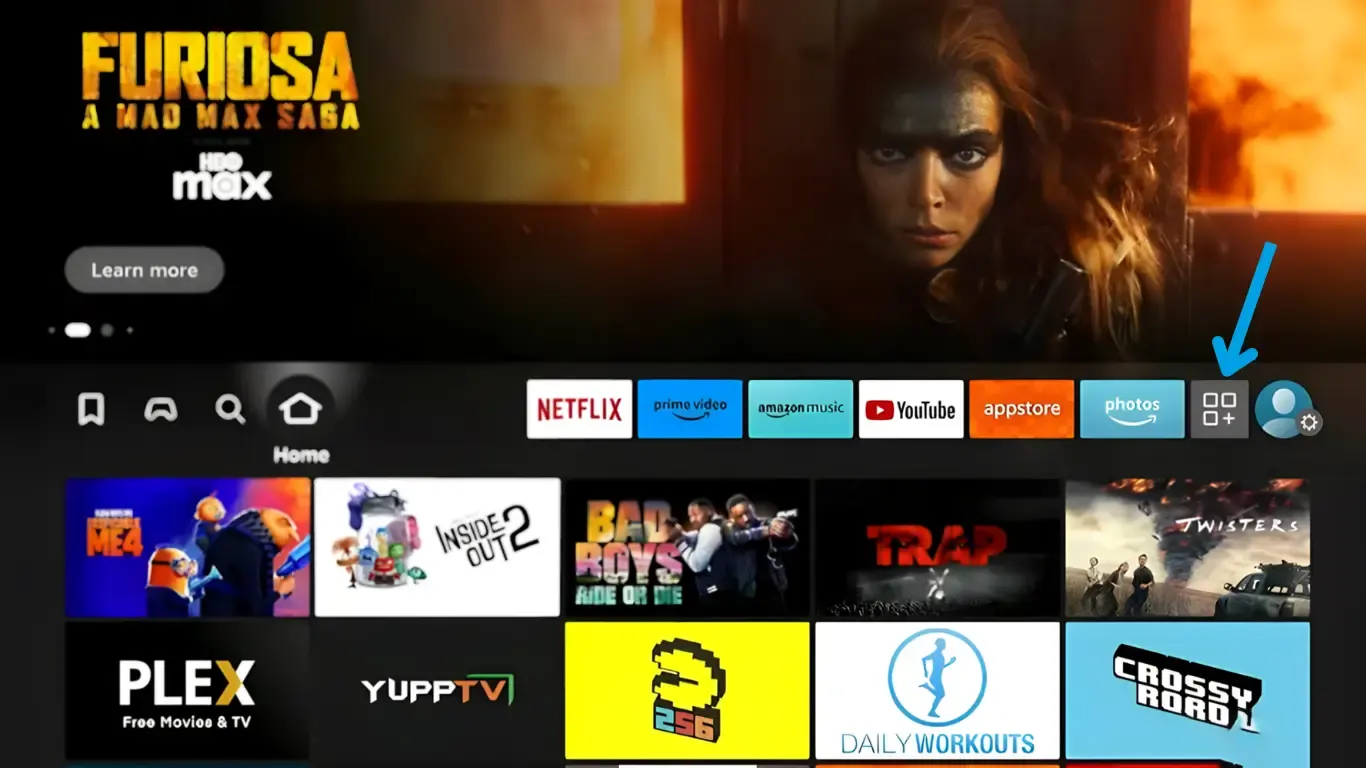
2. Select get more apps
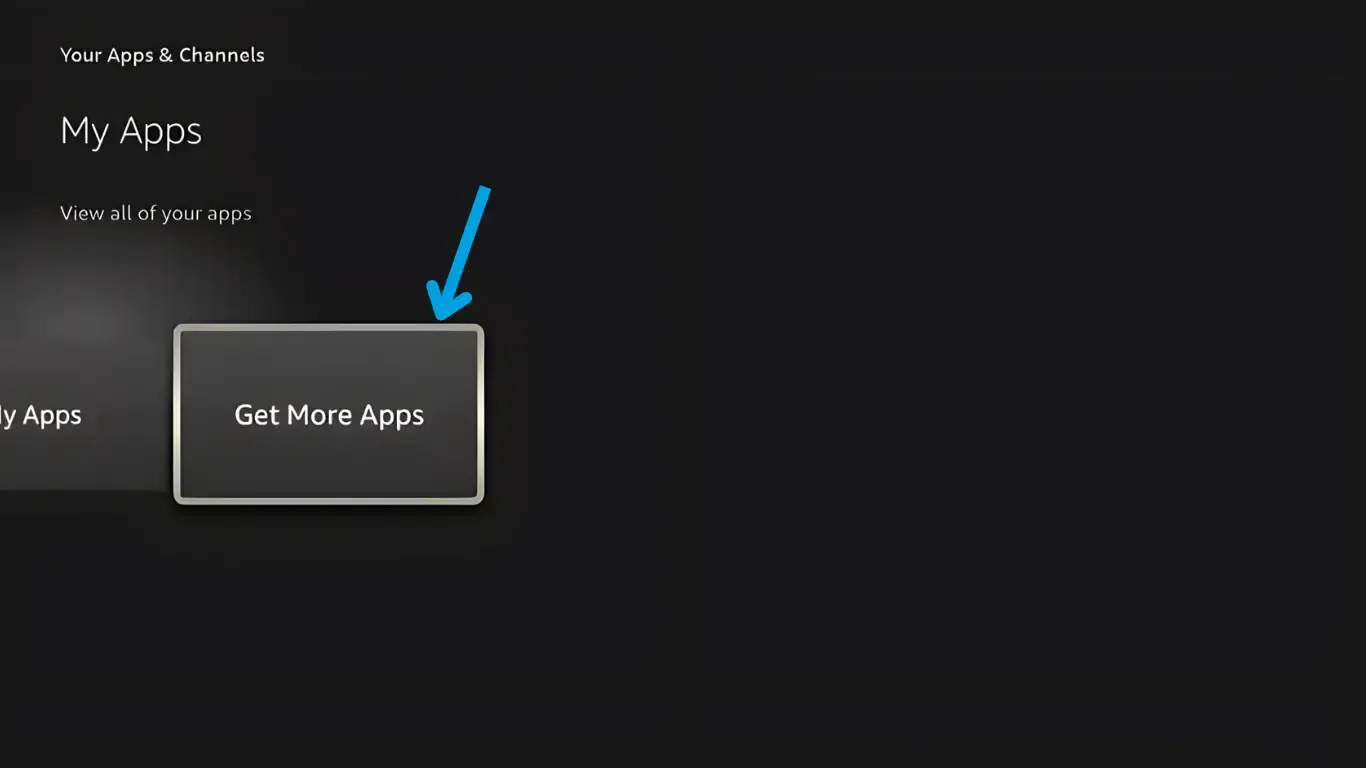
3. Select search, and press down and ok and begin typing Downloader
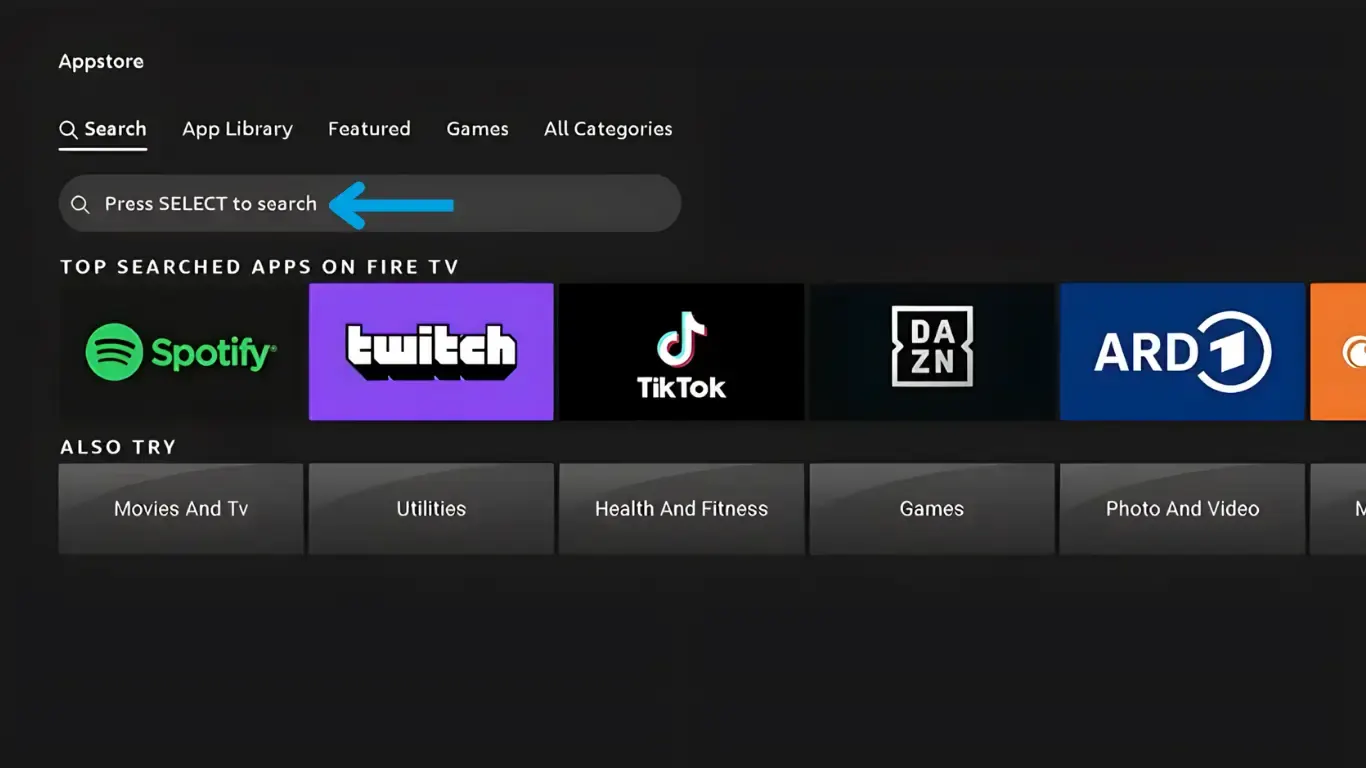
4. During typing results are shown below, go to Downloader and press OK
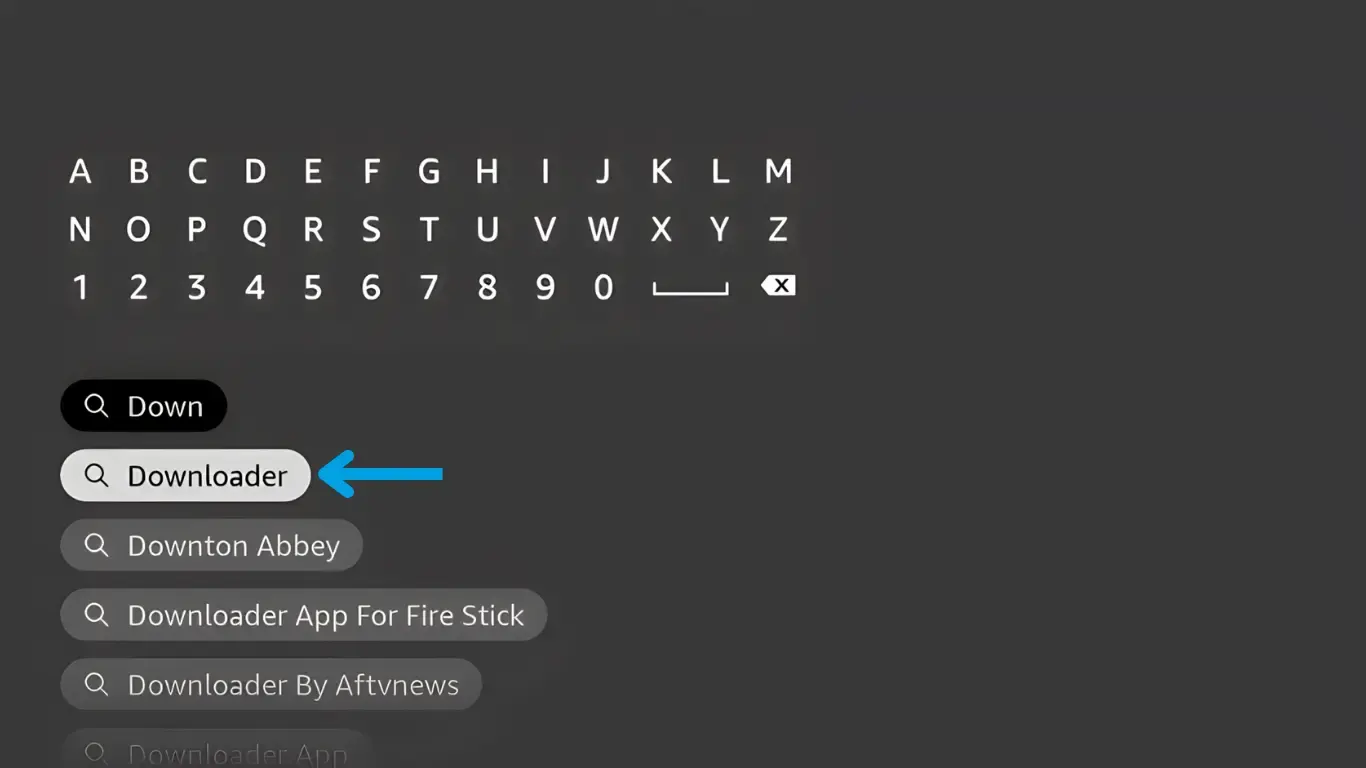
5. Now select Downloader
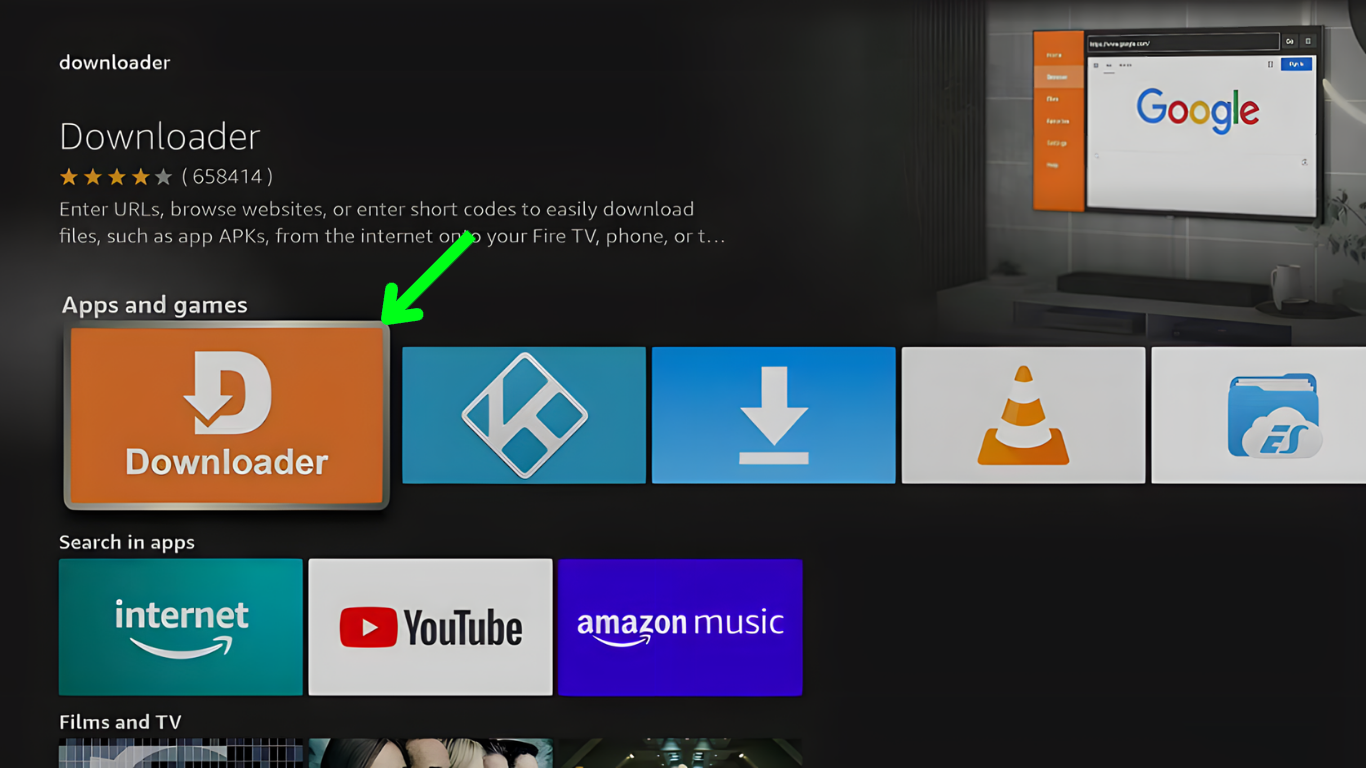
6. Click Download
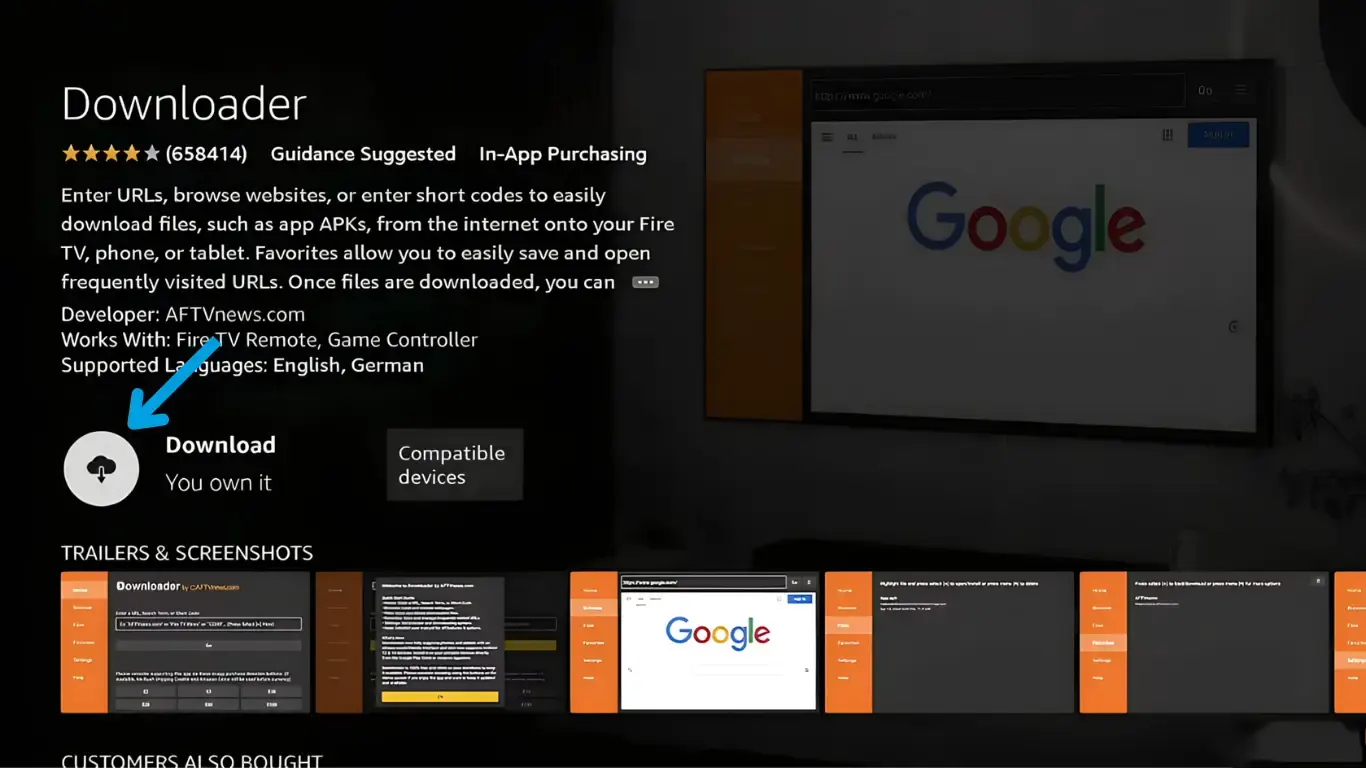
7. The app is being downloaded and installed
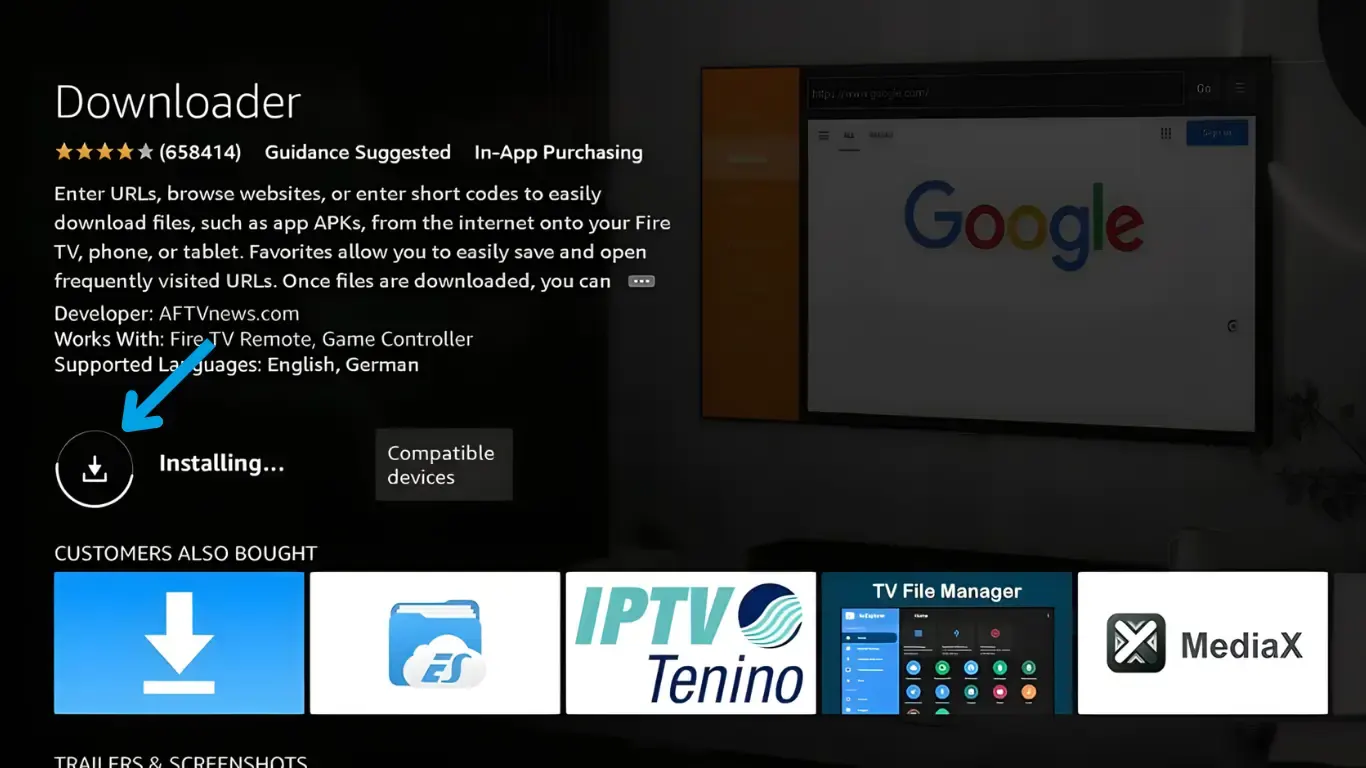
8. Do not open the app yet, but press back until you're in the home screen
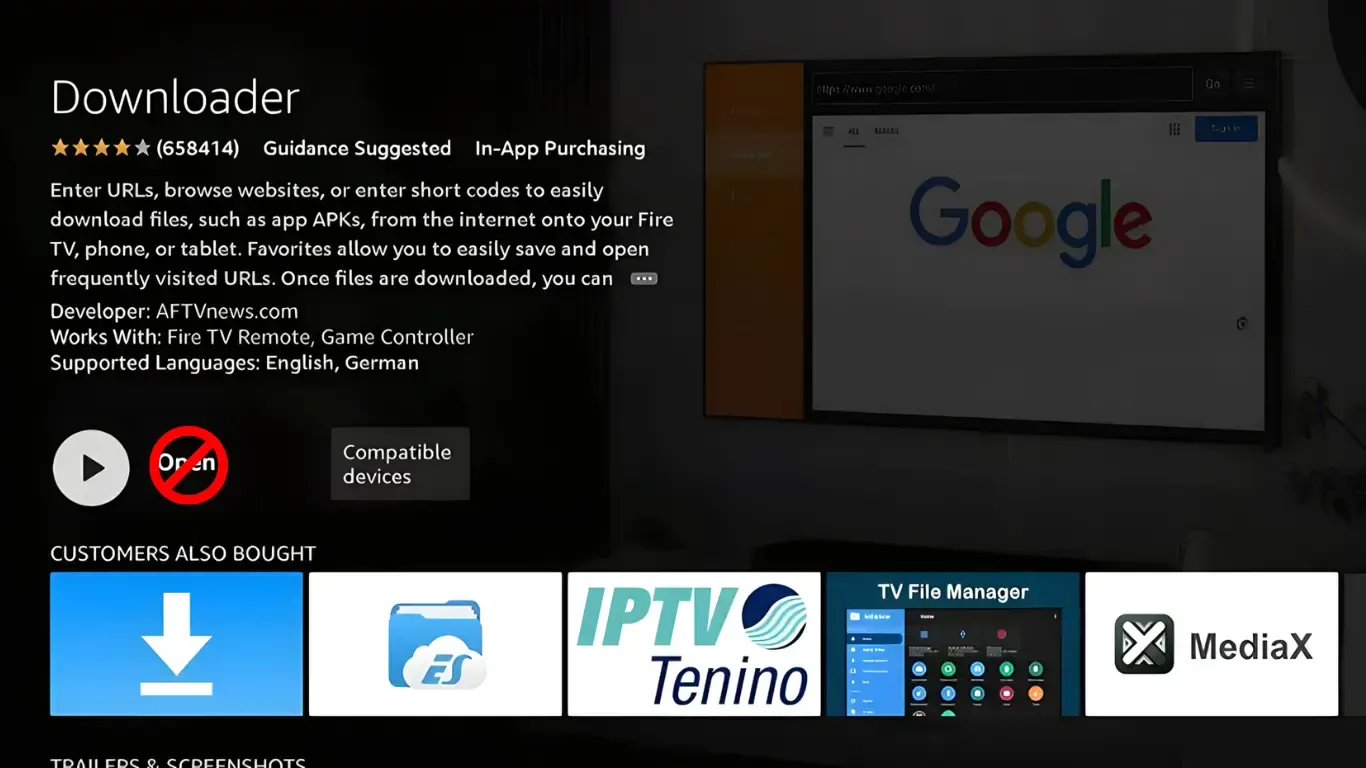
9. Click on My Fire TV
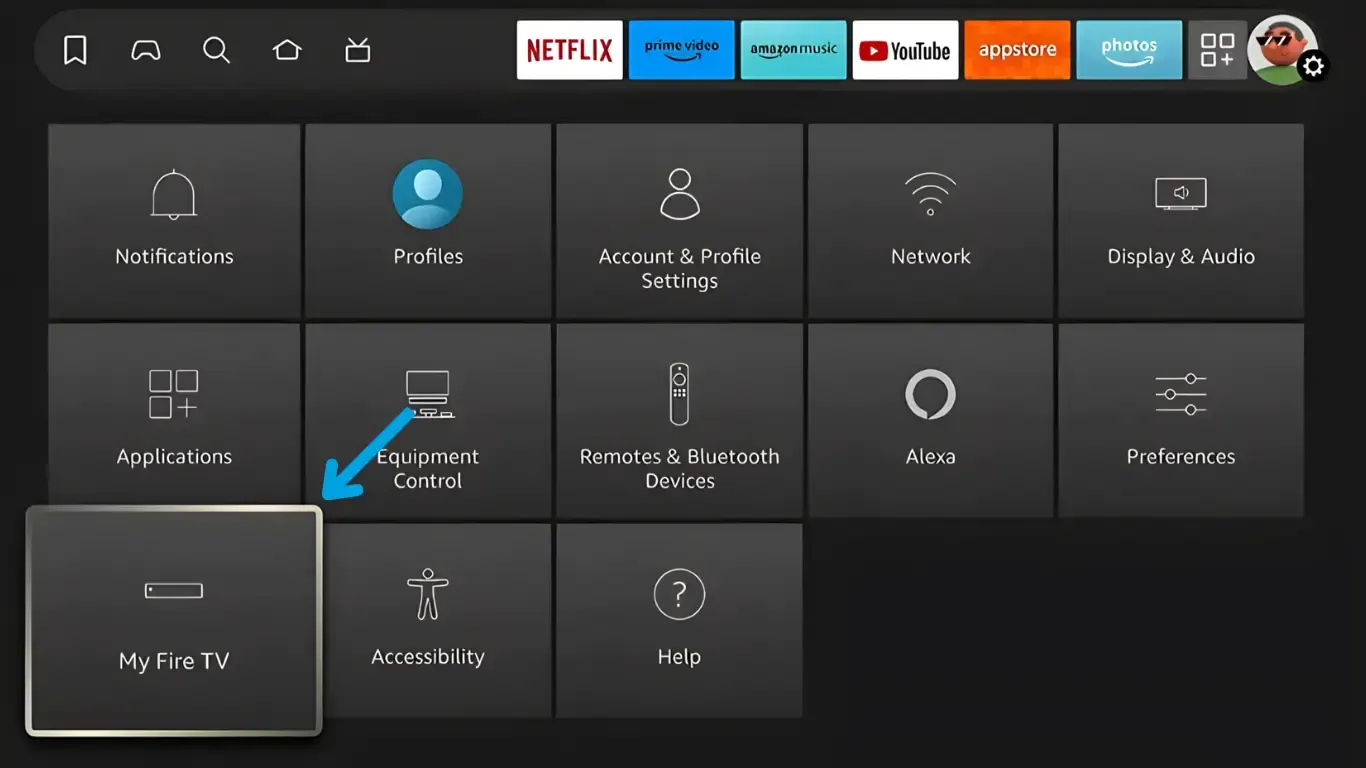
10. Go to settings and select My Fire TV
11. To do this, click About and then Fire TV Stick 7 times to become a developer
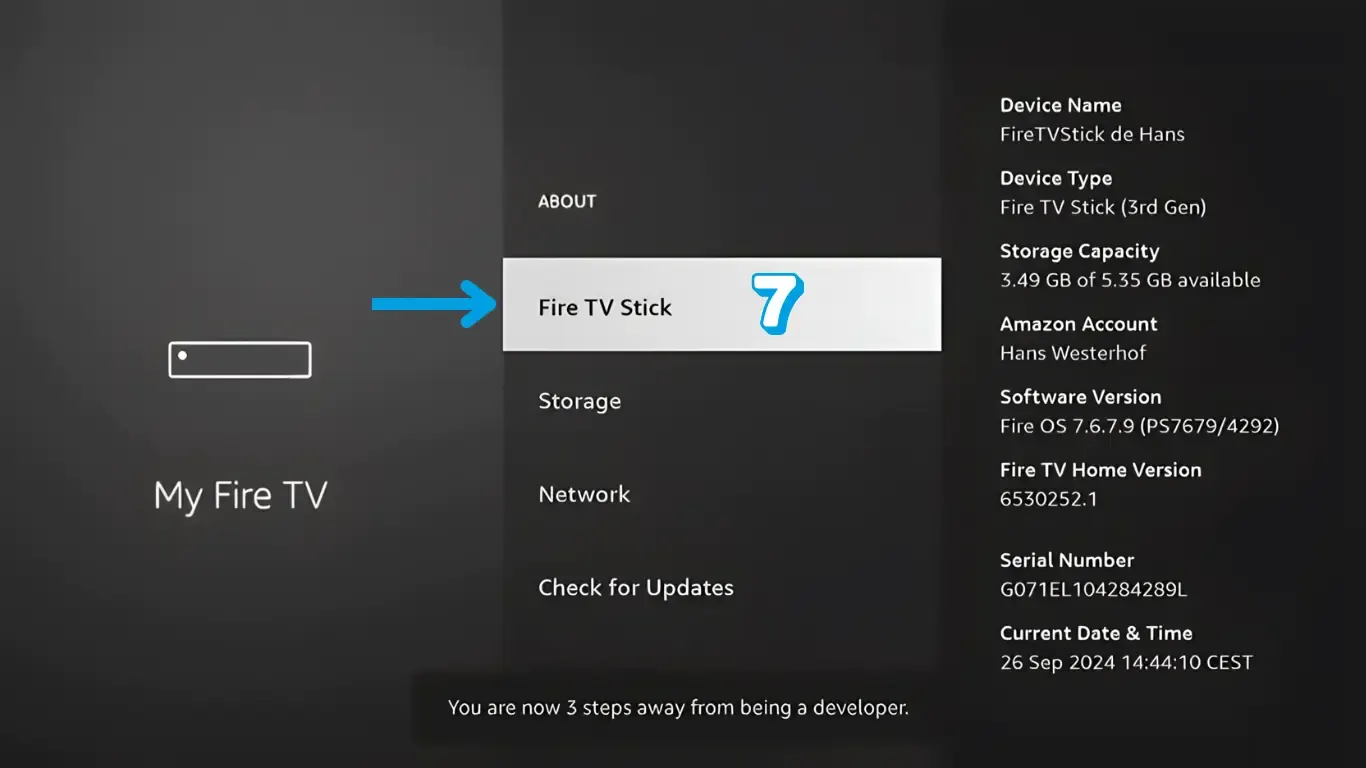
12. Press back and select Developer Options
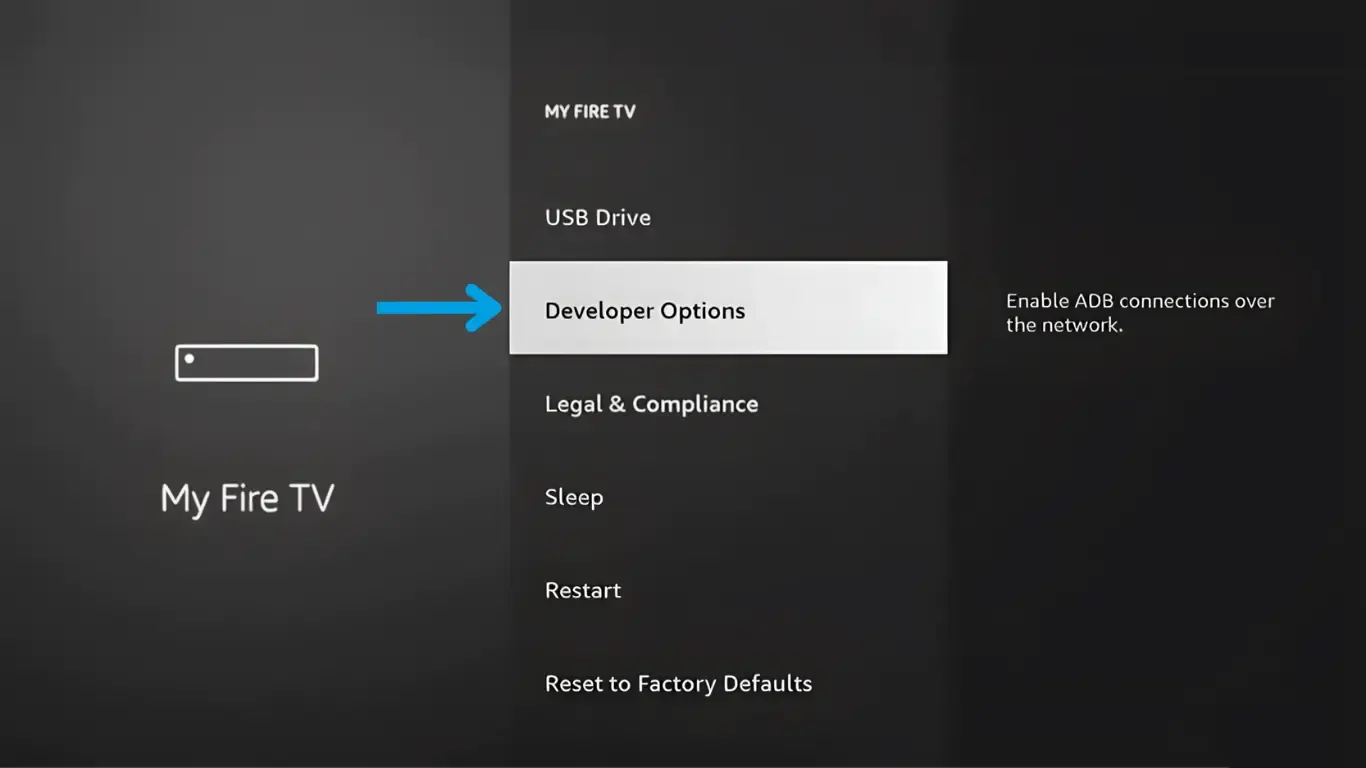
13. Now first enable ADB debugging by pressing OK
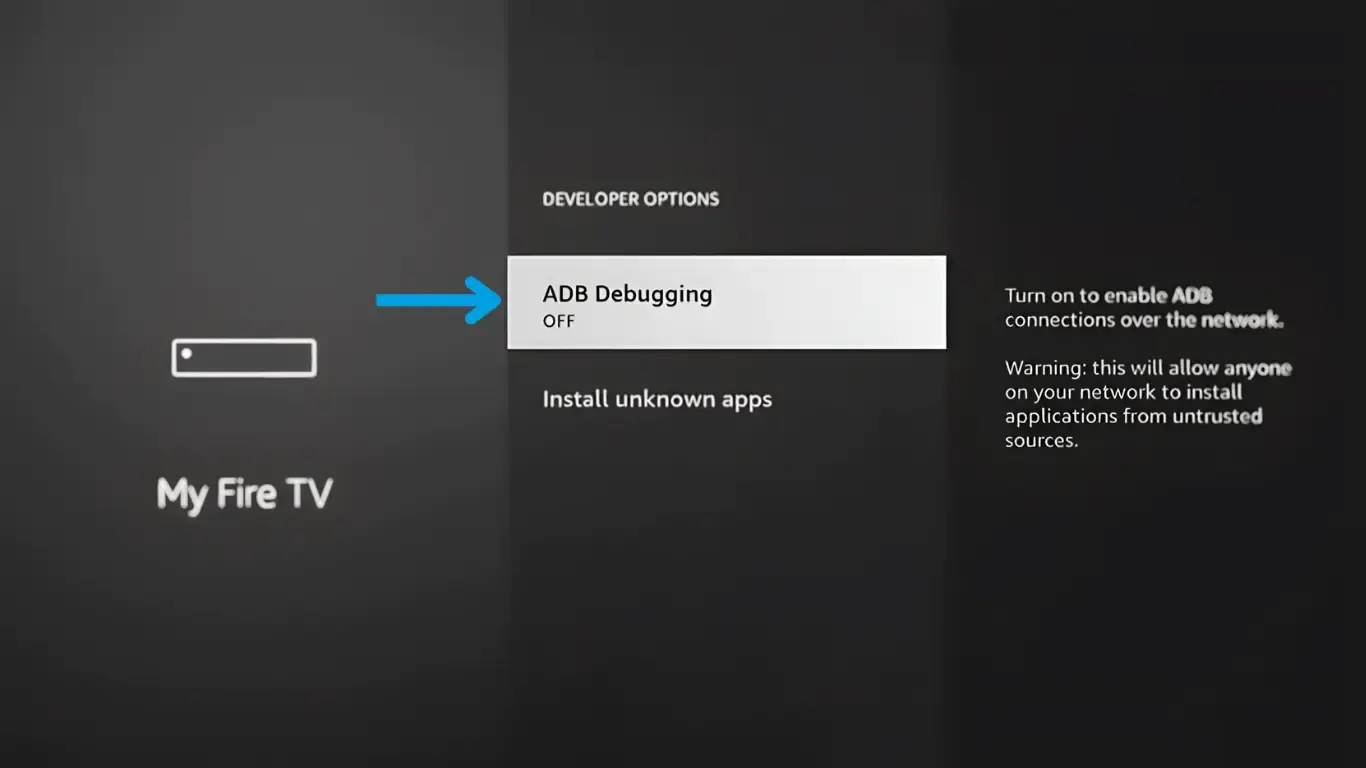
14. ADB debugging was turned on
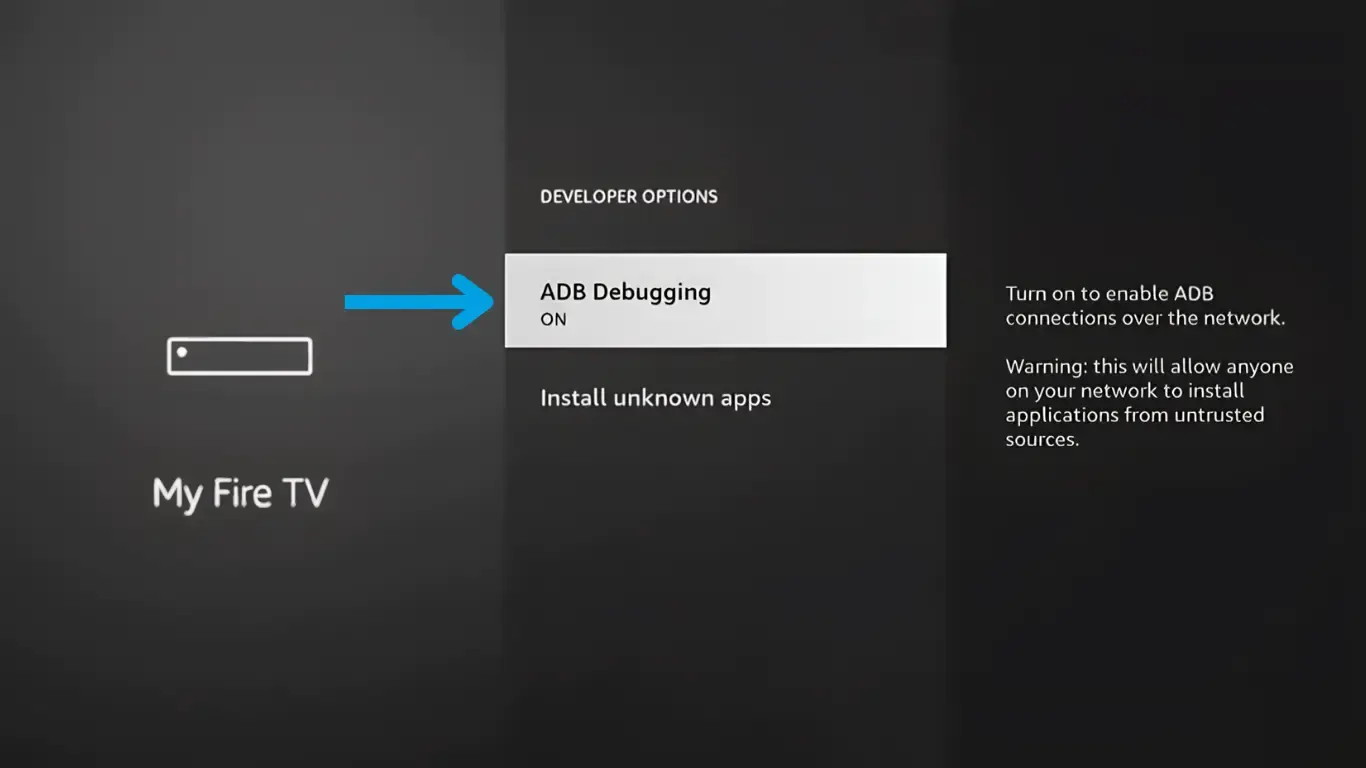
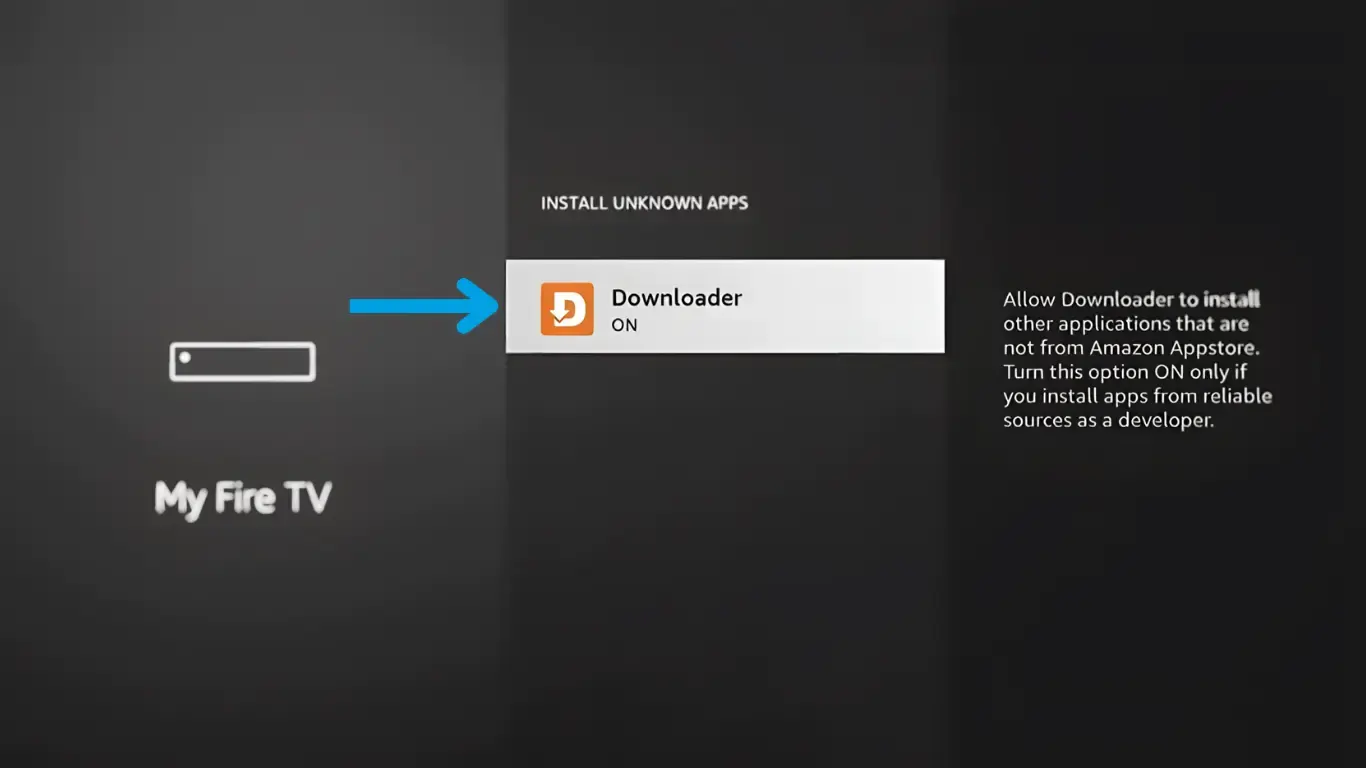
15. Select Install Unknown Apps
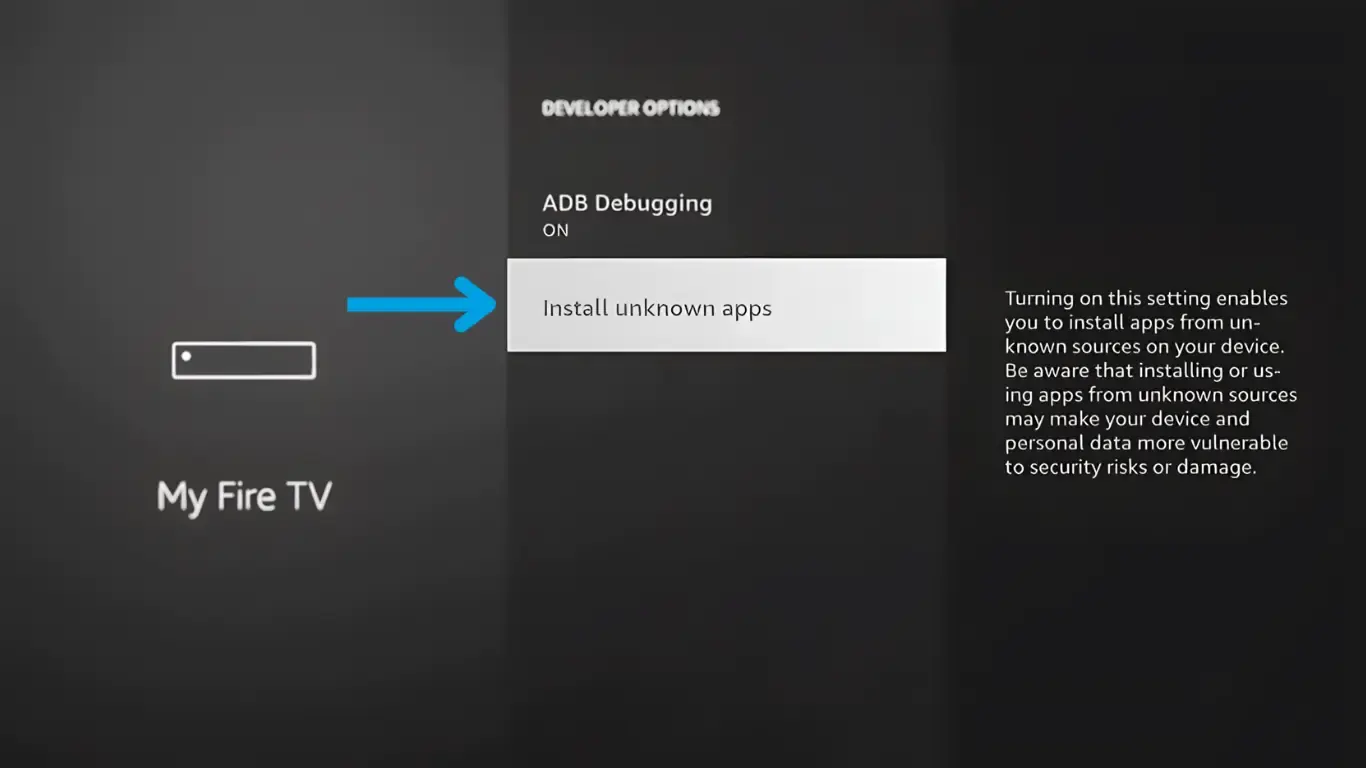
16. Press OK to grant Downloader permission to do so
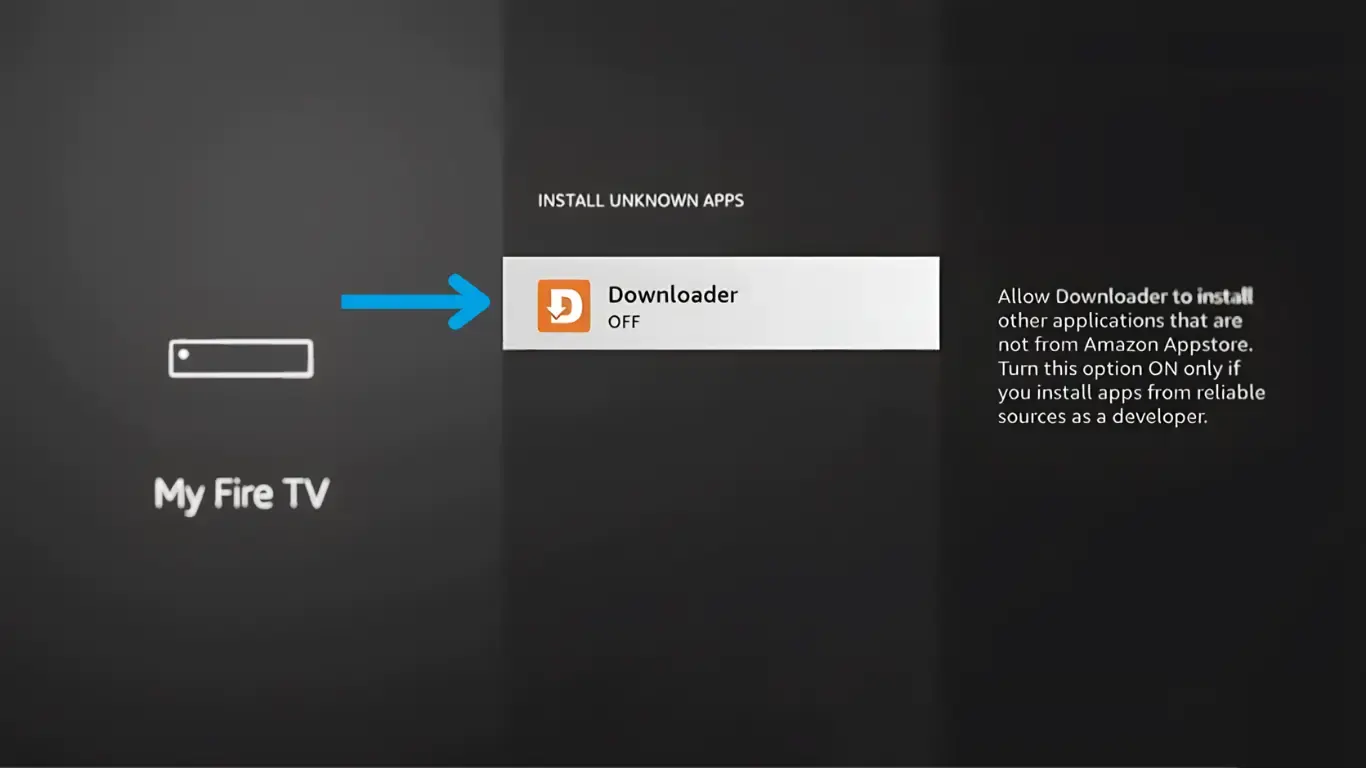
17. This step allows you to sideload apps
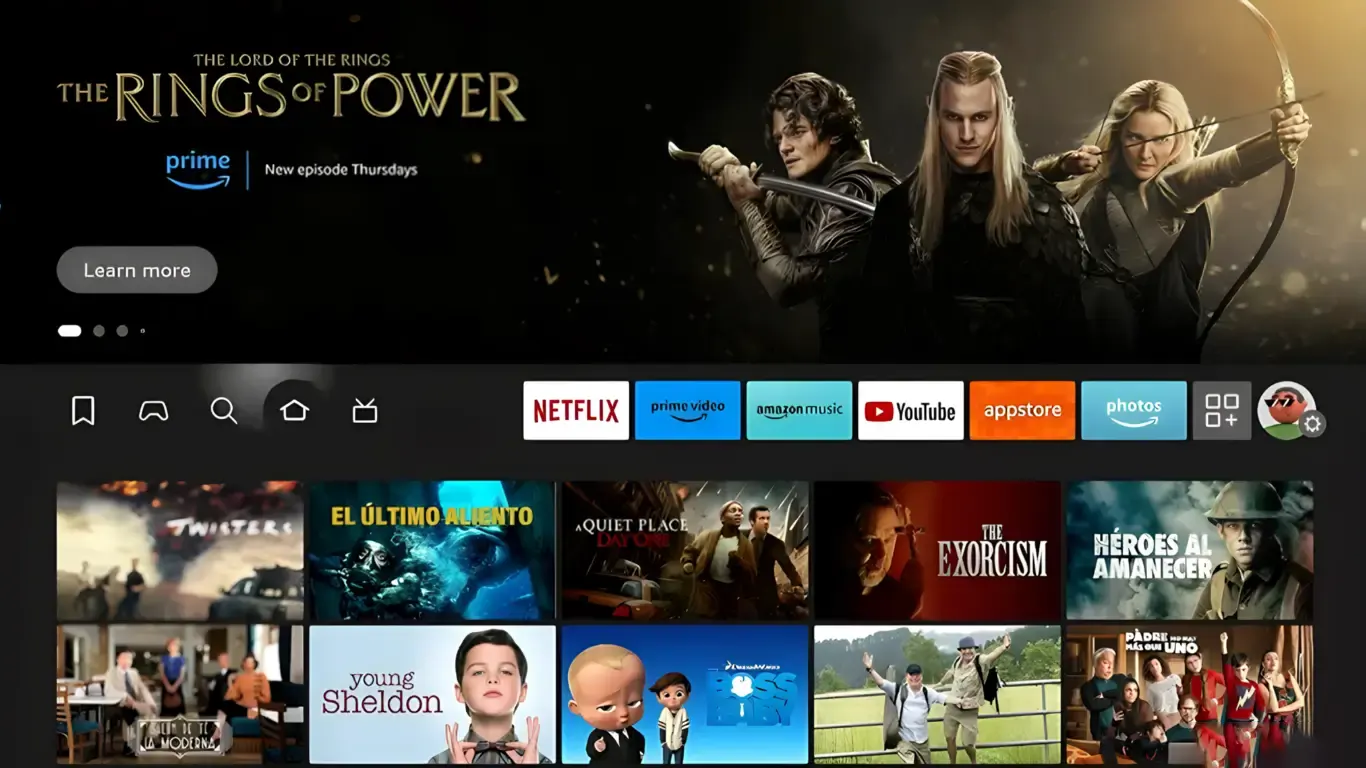
18. Press the Home button on your remote to return to the home page
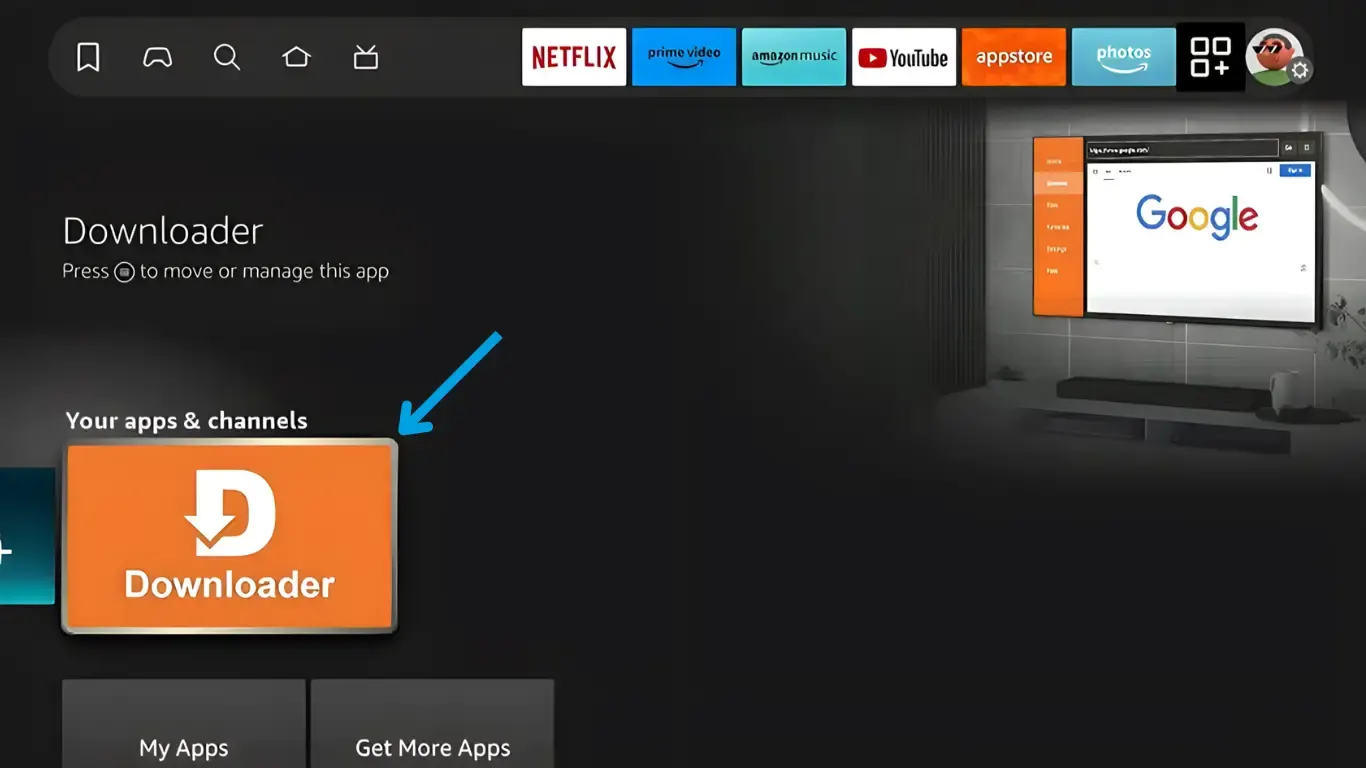
19. Find Downloader and press OK to start
20. Press allow to give Downloader permission to access your file system
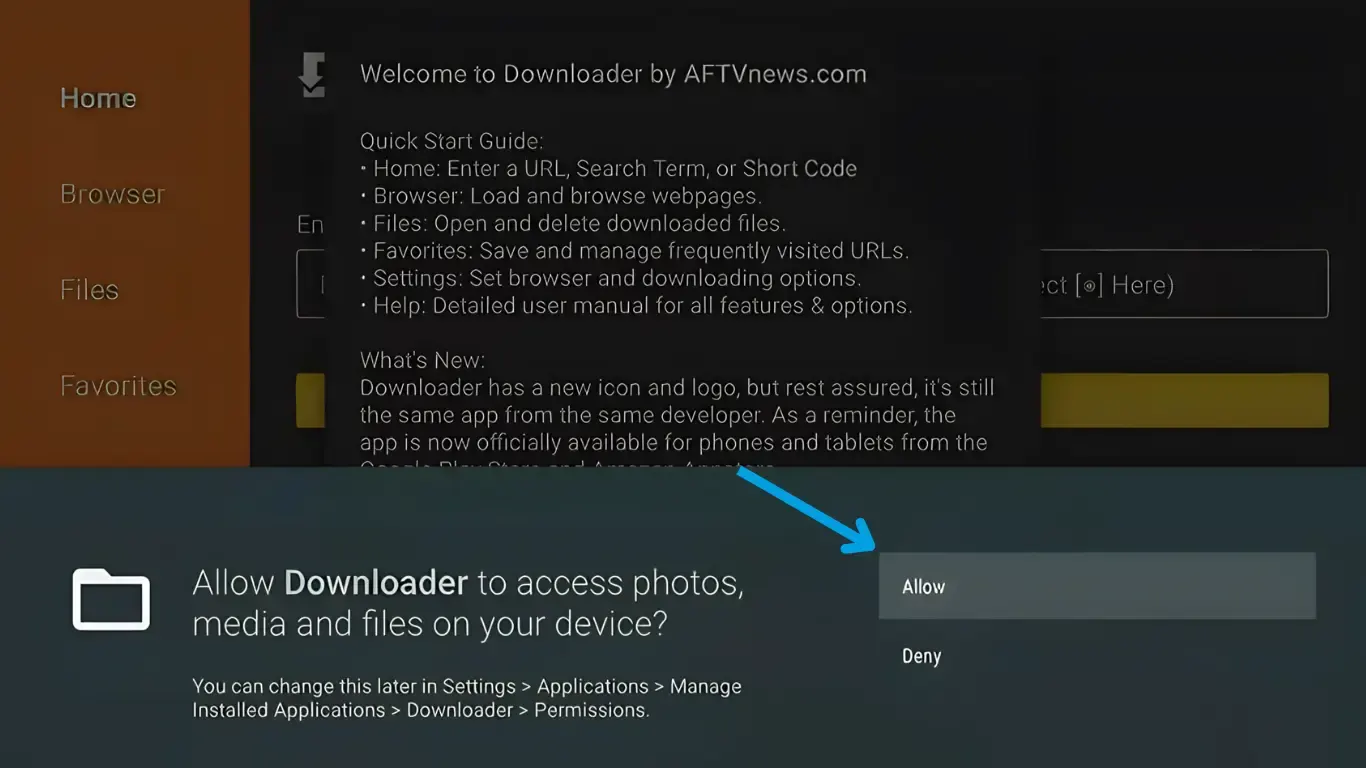
21. Dismiss the welcome message by pressing ok
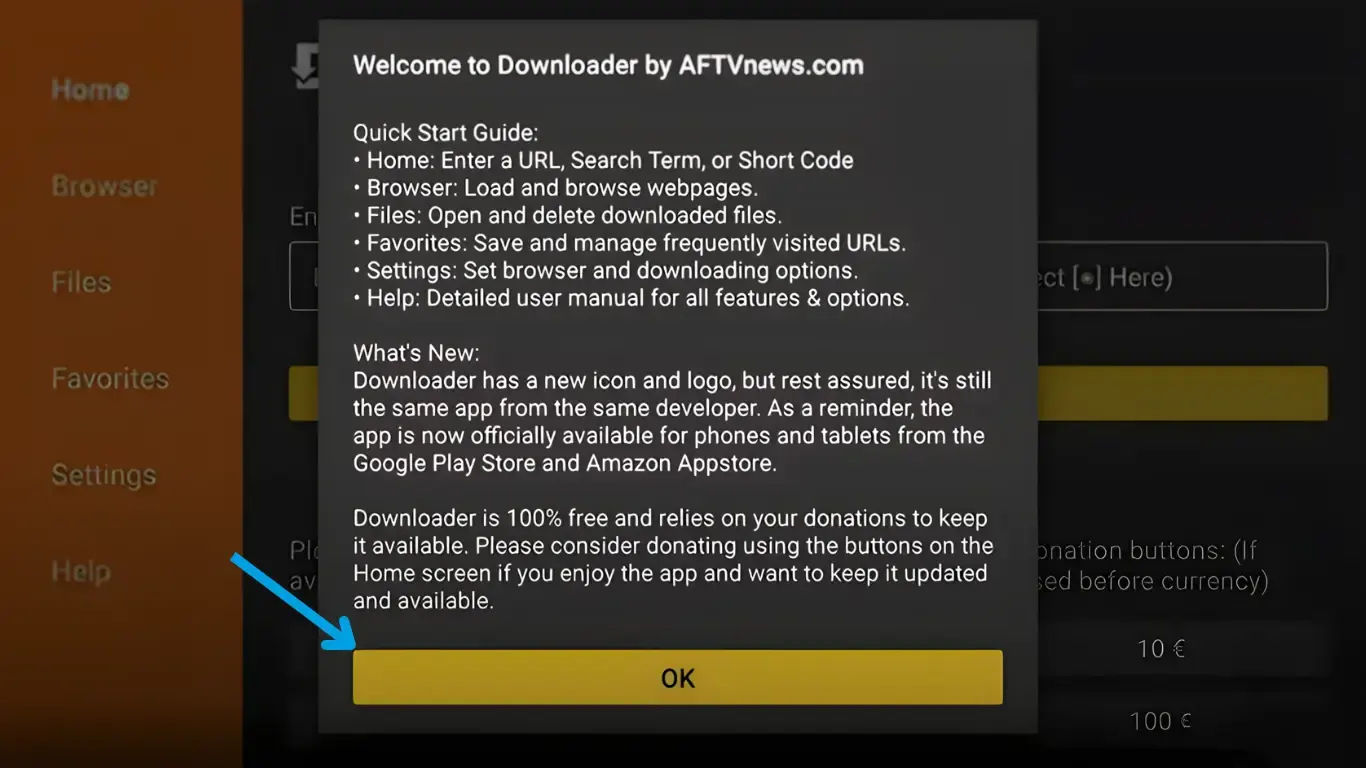
Downloader is now installed and ready. Proceed to Phase 2 below.
Phase 2, Installing IBO Player Pro via Downloader
Now that Downloader is set up, use it to download and install IBO Player Pro on your Firestick.
1. Select the URL box in Downloader
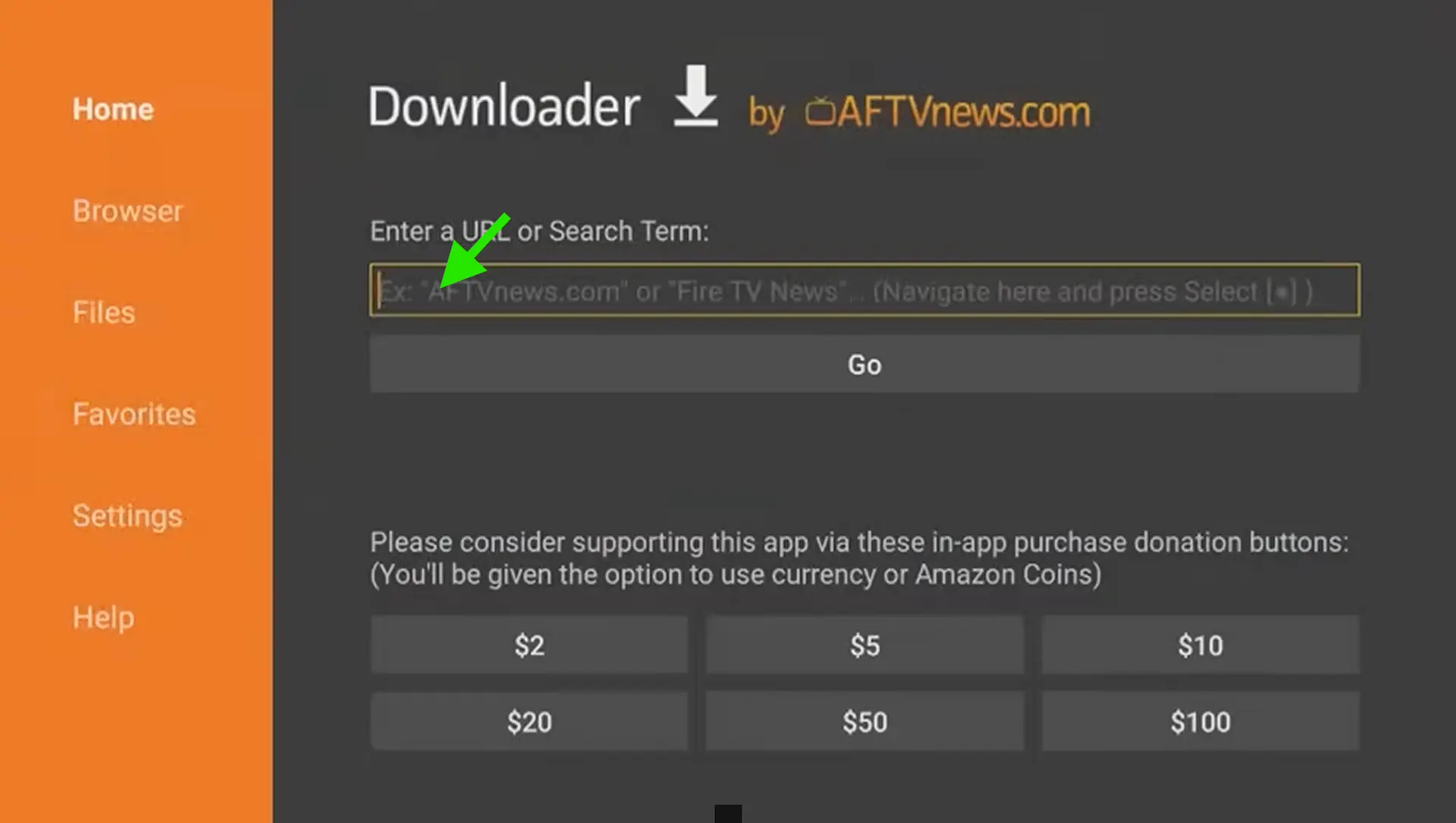
2. Type 834330 or 481220 then click GO button
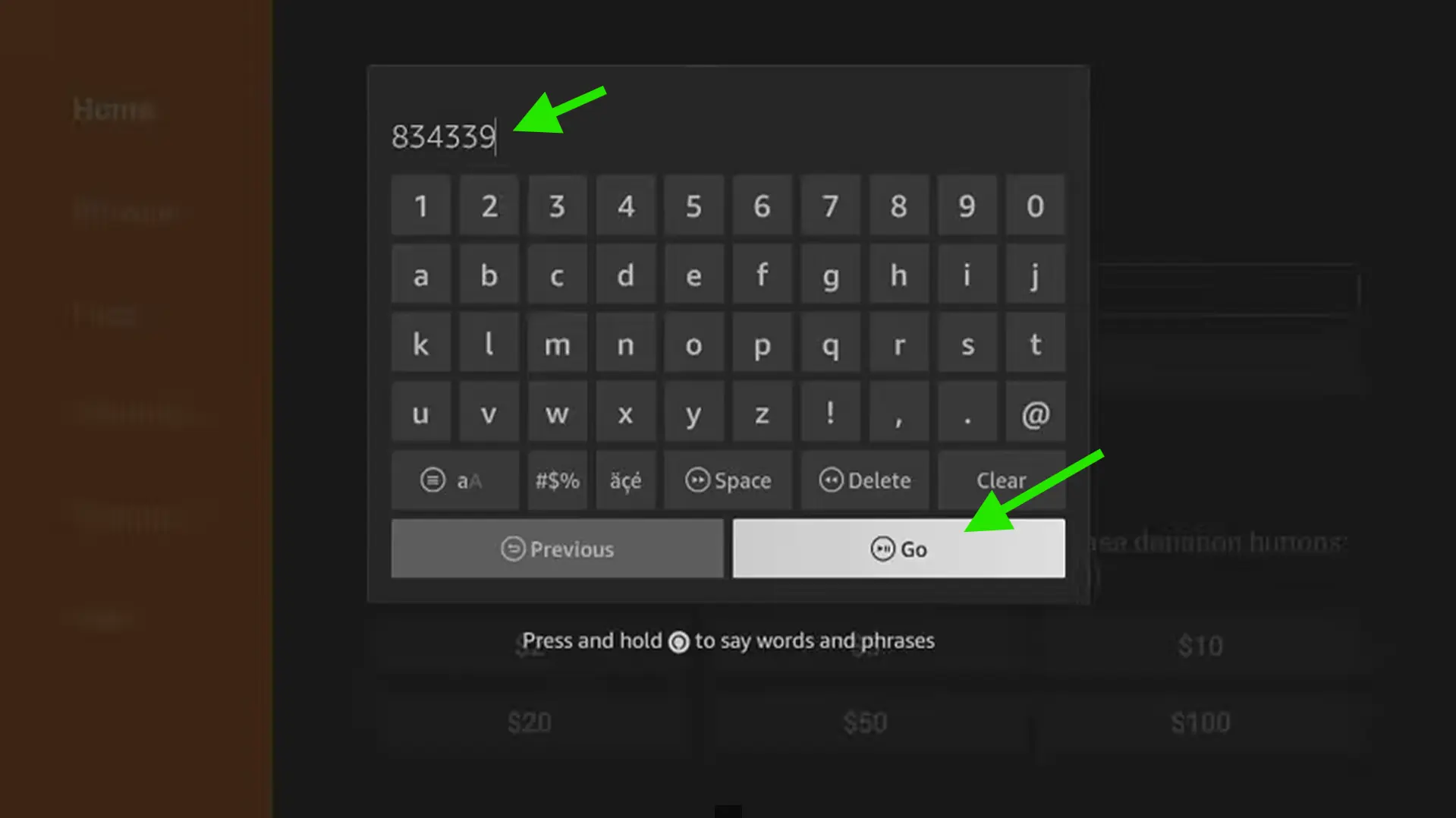
3. After the APK file is downloaded, click Install
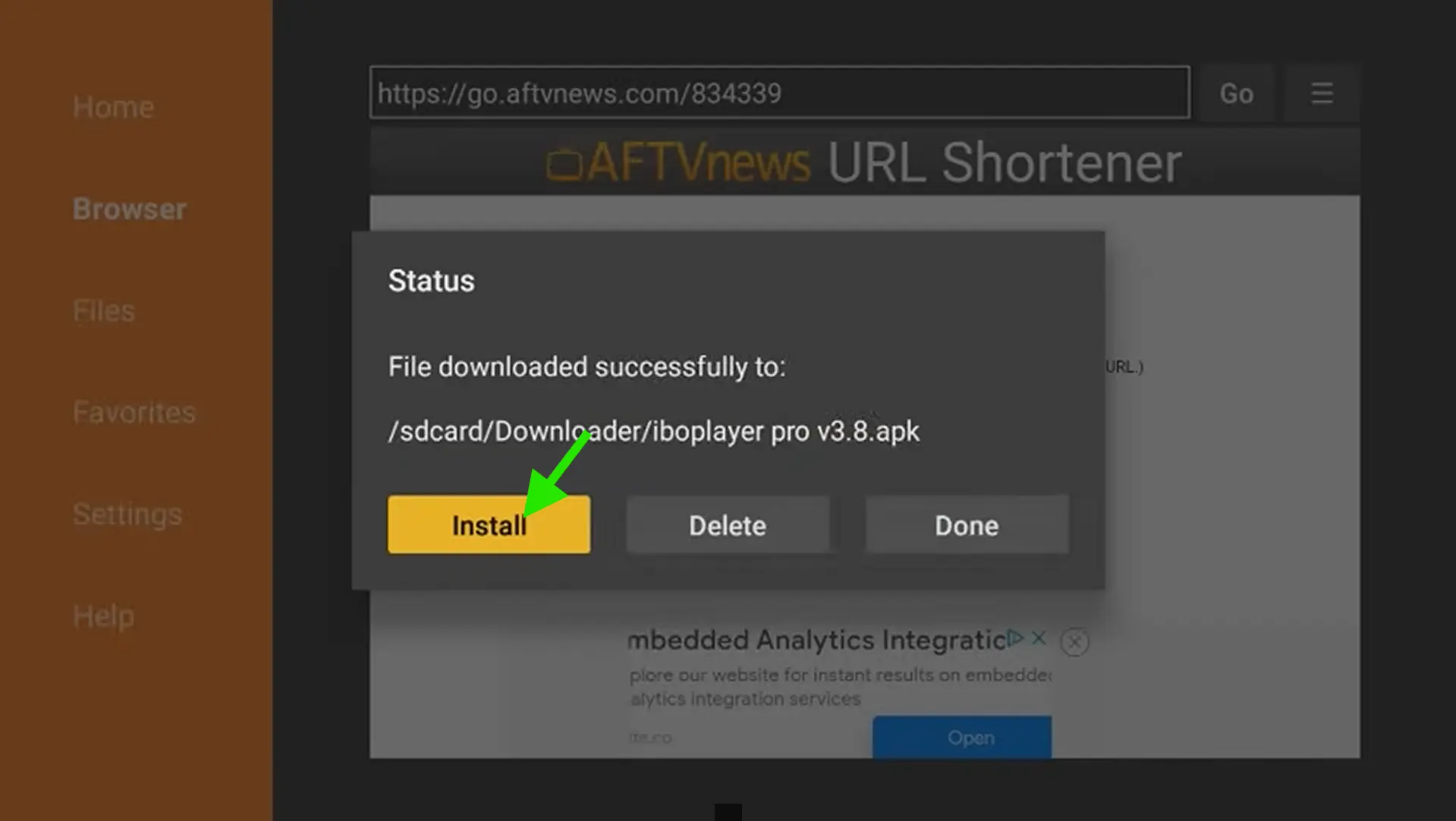
4. Click Install button again
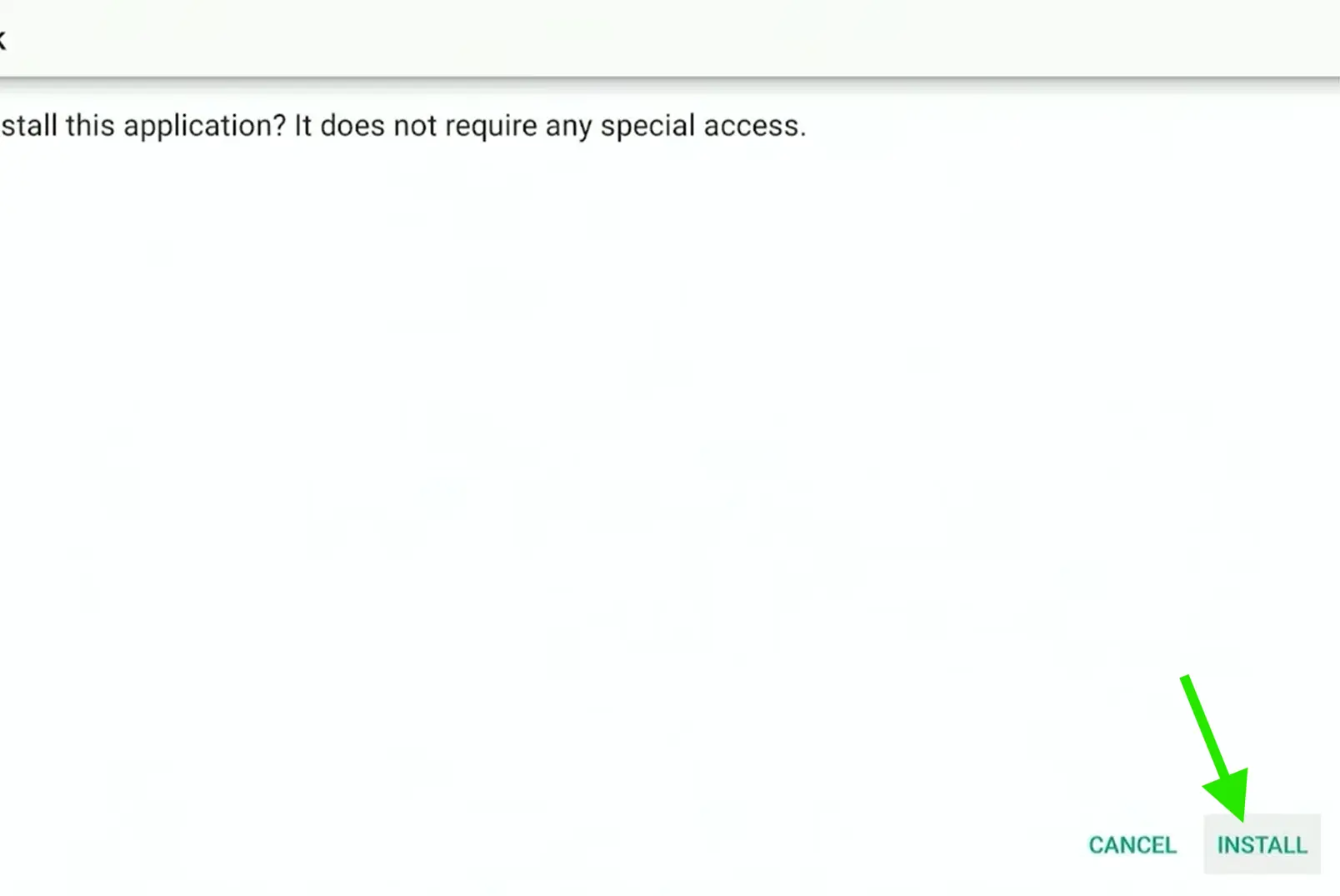
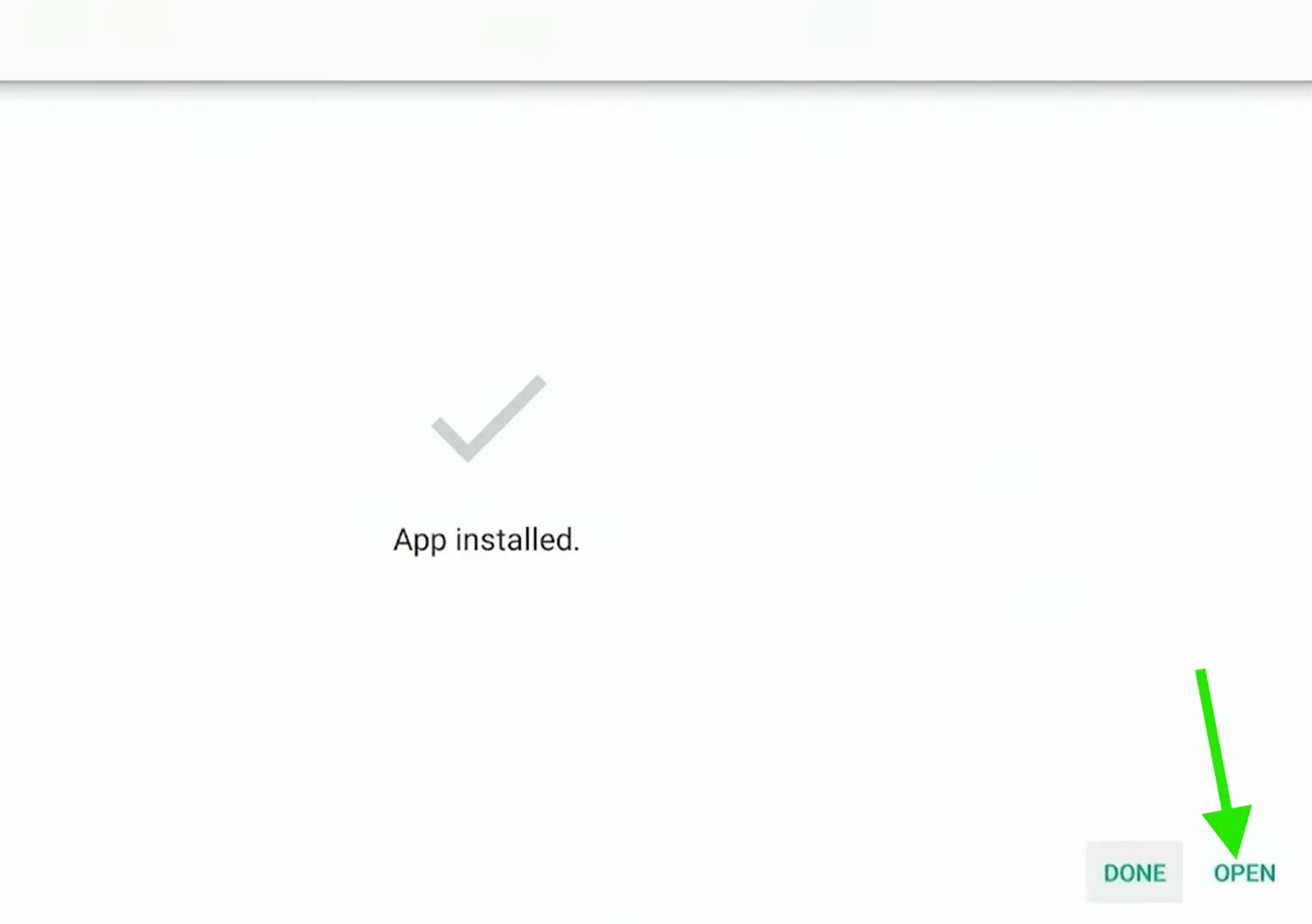
5. Click Open
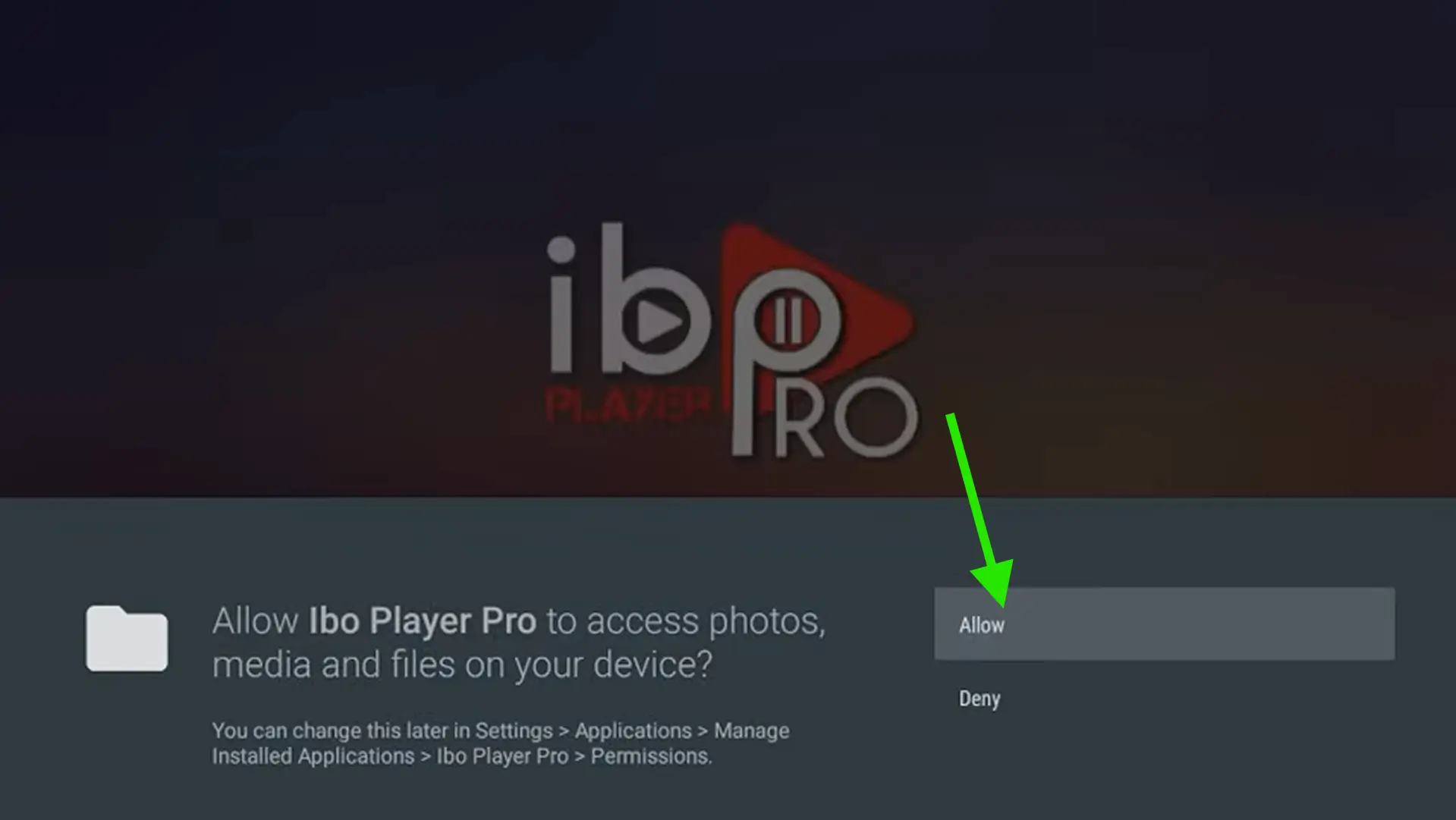
6. Click Allow to give it access to storage, it will be used when it loads the playlist
7. Voila! IBO Player Pro is installed. On the main screen you'll now see your website, MAC address, and Device Key, keep them handy for the final step.
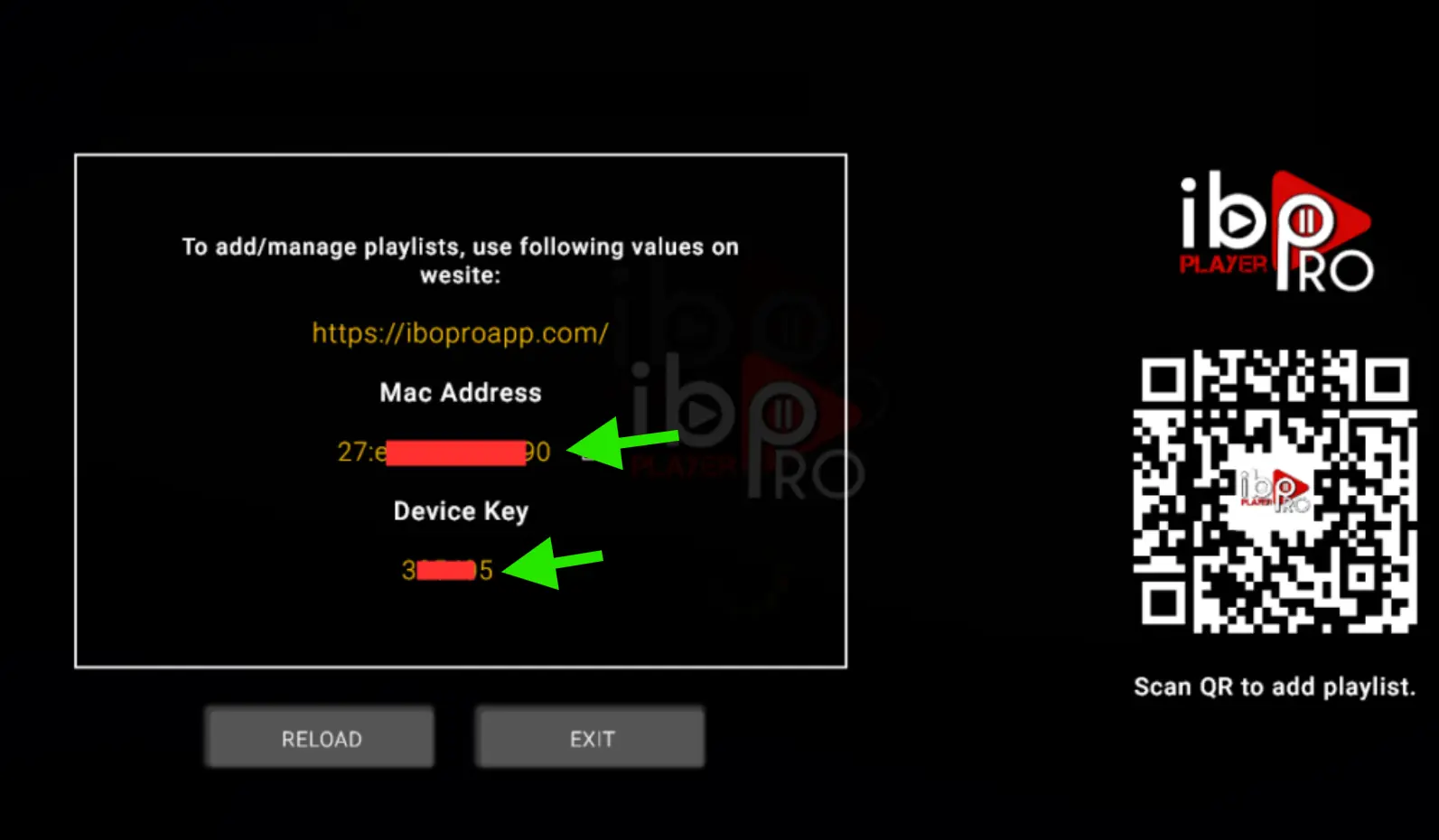
8. Link your playlist (self-service)
- Open a browser on any device (phone, tablet, or PC) and go to the website shown in the app.
- Log in using your MAC address and Device Key.
- Add a new playlist using your M3U URL or Xtreme Codes details (emailed to you), then save.
- Go back to your Firestick, close and reopen IBO Player Pro, your channels will appear.
iOS / Mac (iPhone, iPad, Mac)
Step 1, Search for "ibo pro player" in the Apple App Store
Open the App Store on your iPhone, iPad, or Mac. Search for exactly "ibo pro player" (all lowercase). The official app by the iboplayer.pro team will appear. Download and install it just like any other app.
Step 2, Open the app & note your device info
Open IBO Pro Player. The main screen displays your website, MAC address, and Device Key. Note all three down.
Step 3, Link your playlist (self-service)
- On your phone, tablet, or PC, go to the website shown in the app and log in with your MAC address and Device Key.
- Add a new playlist with your M3U URL or Xtreme Codes details and save.
- Return to the app, close and reopen it, your playlist loads automatically.
Samsung TV
Step 1, Search for "ibplayerpro" in the Samsung App Store
Press the Home button on your Samsung remote, go to Apps, and search for exactly "ibplayerpro" (all lowercase, no spaces). The official IBO Player Pro app will appear. Download and install it directly from the store.
Step 2, Open the app & note your device info
Open IBO Player Pro. The main screen displays your website, MAC address, and Device Key. Note all three down.
Step 3, Link your playlist (self-service)
- Open a browser on any device and go to the website shown in the app. Log in with your MAC address and Device Key.
- Add a new playlist using your M3U URL or Xtreme Codes details, then save.
- Go back to your Samsung TV, restart the app, your channels appear.
LG TV / Roku
Step 1, LG TV: Search for "ibPlayer Pro" in the LG Content Store
Press the Smart button on your remote, go to the LG Content Store, and search for exactly "ibPlayer Pro". Download and install it directly from the store.
Step 2, Roku: Search for "ibo player pro" in the Roku Channel Store
On your Roku device, go to Streaming Channels and search for exactly "ibo player pro" (all lowercase). Add the channel and it will install automatically.
Step 3, Open the app & note your device info
Open IBO Player Pro. The main screen displays your website, MAC address, and Device Key. Note all three down.
Step 4, Link your playlist (self-service)
- Open a browser on any device and go to the website shown in the app. Log in with your MAC address and Device Key.
- Add a new playlist using your M3U URL or Xtreme Codes details, then save.
- Go back to your TV, restart the app, your playlist loads automatically.
Windows (PC & Laptop)
Step 1, Go to iboproapp.com and download the installer
Open your browser and go to iboproapp.com. Click the download button for Windows to get the .exe installer. Wait for the download to finish, the file is around 60-80 MB.
Step 2, Install IBO Player Pro on your PC
Open the .exe file and follow the installation wizard. If you see a Windows SmartScreen warning, click "More info" then "Run anyway". Alternatively, install directly from the Microsoft Store by searching for "IBO Player Pro", no sideloading needed.
Step 3, Open IBO Player Pro & find your device info
Open the app. The main screen displays your website, MAC address, and Device Key at the top. Note all three down.
Step 4, Link your playlist (self-service)
- Go to the website shown in the app and log in with your MAC address and Device Key.
- Add a new playlist using your M3U URL or Xtreme Codes details, then save.
- Go back to the app, close and reopen it, your playlist loads automatically.
Need an IPTV Subscription for IBO Player Pro?
Get your M3U URL or Xtreme Codes instantly. 55,200+ channels, Full HD & 4K, anti-freeze technology.
View Plans